
Documentation
Getting started
What the app is, which wheels it understands, and how to connect the first time.
LoEUC reads what your wheel already broadcasts about itself and puts it on your phone screen. The app does not ride for you and decides nothing on its own: it shows, records and warns.
There are two builds, one for Android and one for iPhone. They do close to the same thing, and the differences are called out where they exist.
What you need#
A phone and a wheel. The app has no server, no account and no need for an internet connection.
On first launch the interface language follows the phone: a Russian system gets the Russian app, anything else gets the English one. The Android build used to start in Russian whatever the phone said, so an English-speaking owner had to go dig it out of a menu. This applies to fresh installs only: if you already have the app, an update leaves your language exactly as it was, and your own choice in the language menu always outranks any default.
The iPhone has that menu now too: Settings → Language, with three positions — System, Русский and English. System is the default and means «whatever the phone says». The choice applies right away, the app returning to its home screen as it does, and the same language is picked up by the spoken alerts, the factory alert rule names, the ride card and the widget.
On first launch the phone asks for permission to find devices nearby. Without it the operating system will not let the app see the wheel at all. On Android that permission is historically tied to location, so the prompt may mention your location even if you never intend to record a route.
Connecting the first time#
- Turn the wheel on and make sure nothing else is connected to it. A wheel holds a single connection, and while another app is talking to it, LoEUC cannot see it.
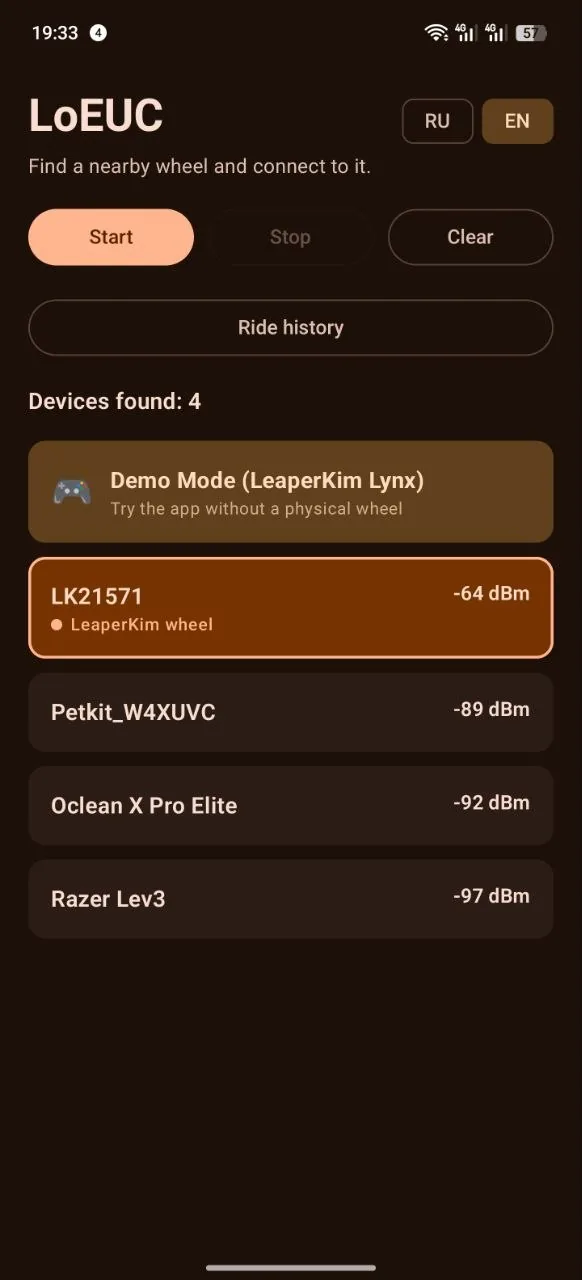
- Open LoEUC. On Android the search starts automatically and keeps running while the home screen is open.
- Find your wheel among the nearby devices. The app marks devices that look like wheels and labels the brand it thinks it found.
- Tap the row. The app connects, finds the right channels and starts showing telemetry.
After the first successful connection, the wheel stays under “My wheels”. On later launches the Android app notices it in range and chooses it automatically. You can keep several wheels; long-press one to give it a familiar name or remove it from the garage. Its factory name remains the identity used by rides, settings and alerts, and the name you gave it is what the dashboard header shows from then on.
Your wheel stays listed even when it goes quiet in the air — tapping it still connects by the saved address. On an iPhone, your wheel that another app on the same phone already holds shows as in range and connects alongside it — but two apps on one wheel get in each other's way, and closing the other one is the safer choice. And going back from the dashboard to the garage does not reconnect: the link holds and the ride continues, but the app will not pull you back to the dashboard until you tap the wheel yourself.
If the wheel does not answer, the usual cause is that it is still paired with the manufacturer's app or with another phone. Toggle the wheel's wireless connection off and on, or close the other app.
App menu on Android#
The Menu button above the wheel list opens a bottom sheet. Language is at the top; account and backup are under “Your data”, exploration and relay reception under “Riding”, and demo rides and the dump player under “Tools”. “Clear discovered devices” clears scan results; saved wheels and rides are kept.
Demo mode#
You can try the app without a wheel. On first launch the demo button is on the home screen;
afterwards it lives in the ⋯ menu. It asks which wheel to show: these are real recordings of
real rides, not invented numbers.
The demo is not a recording being viewed — it is a live session whose telemetry comes from a file, so everything works as it would with a wheel, streaming to the watch and to an external display included. The recording loops. Two things the demo deliberately does not do: it writes no ride to your history and records no GPS — the telemetry in it is somebody else's, while the coordinates would be your own.
Where to go next#
- The dashboard: arranging the readouts the way you want them.
- Rides and maps: what gets recorded and how to read it afterwards.
- Alerts: warnings tuned to how you actually ride.
- Wheels by brand: what is supported on your model.